 AppDesk
Configure AppDesk with App Store Connect
Follow this guide to obtain the credentials needed to connect your App Store Connect account to AppDesk.
Prerequisite: You need an Account Holder or Admin role in App Store Connect to generate API keys.
Step 1 — Navigate to App Store Connect API Keys
The Issuer ID and Key ID are obtained by creating an App Store Connect API key. This also generates the Private Key file.
- Log in to App Store Connect.
- Navigate to Users and Access from the top menu.
- Select the Integrations tab, then click App Store Connect API in the sidebar.
- Under the Team Keys tab, click the + button to generate a new key.
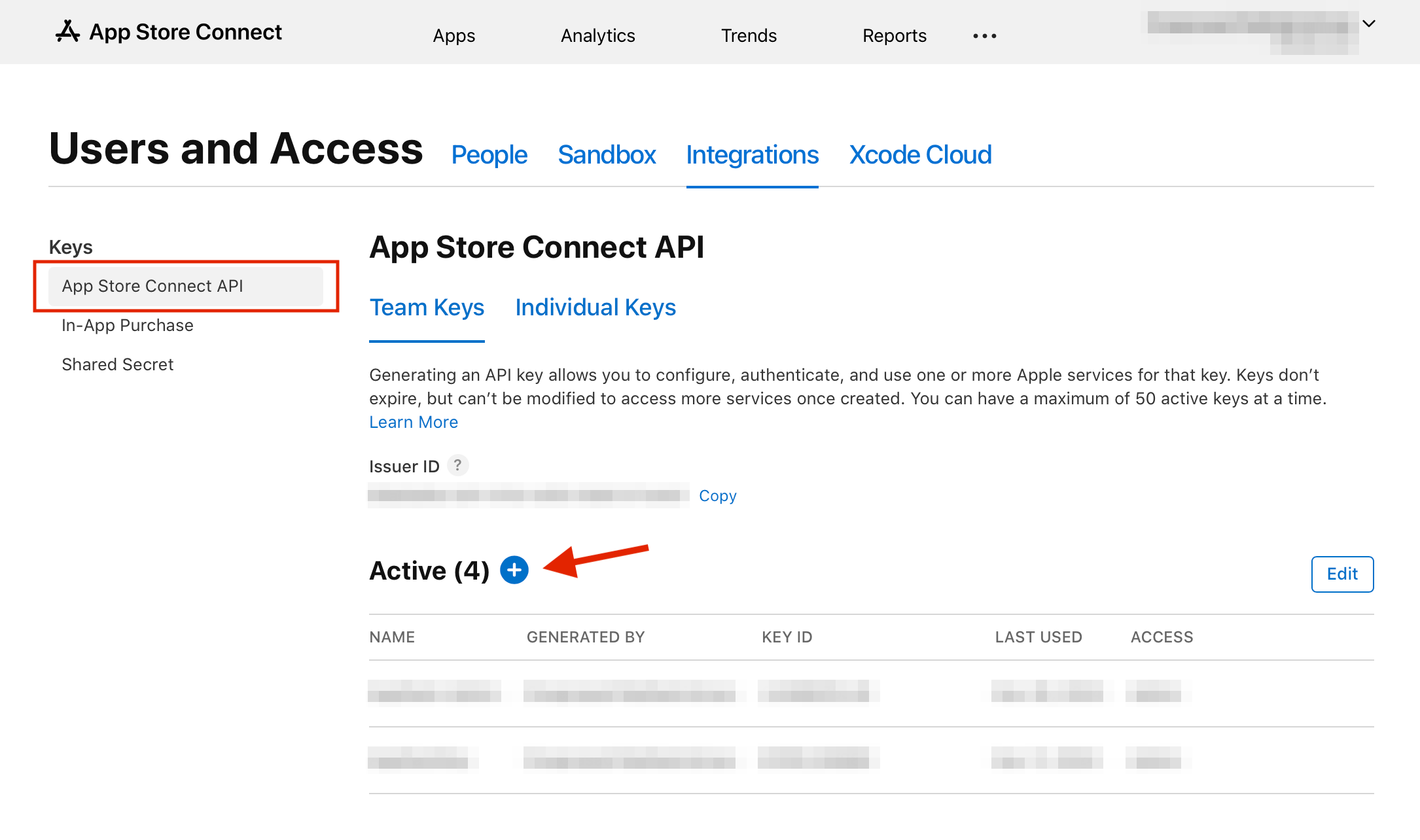
Step 2 — Generate the API Key
- Enter a name for your key (e.g., “AppDesk”) and select the Admin access level.
- Click Generate.
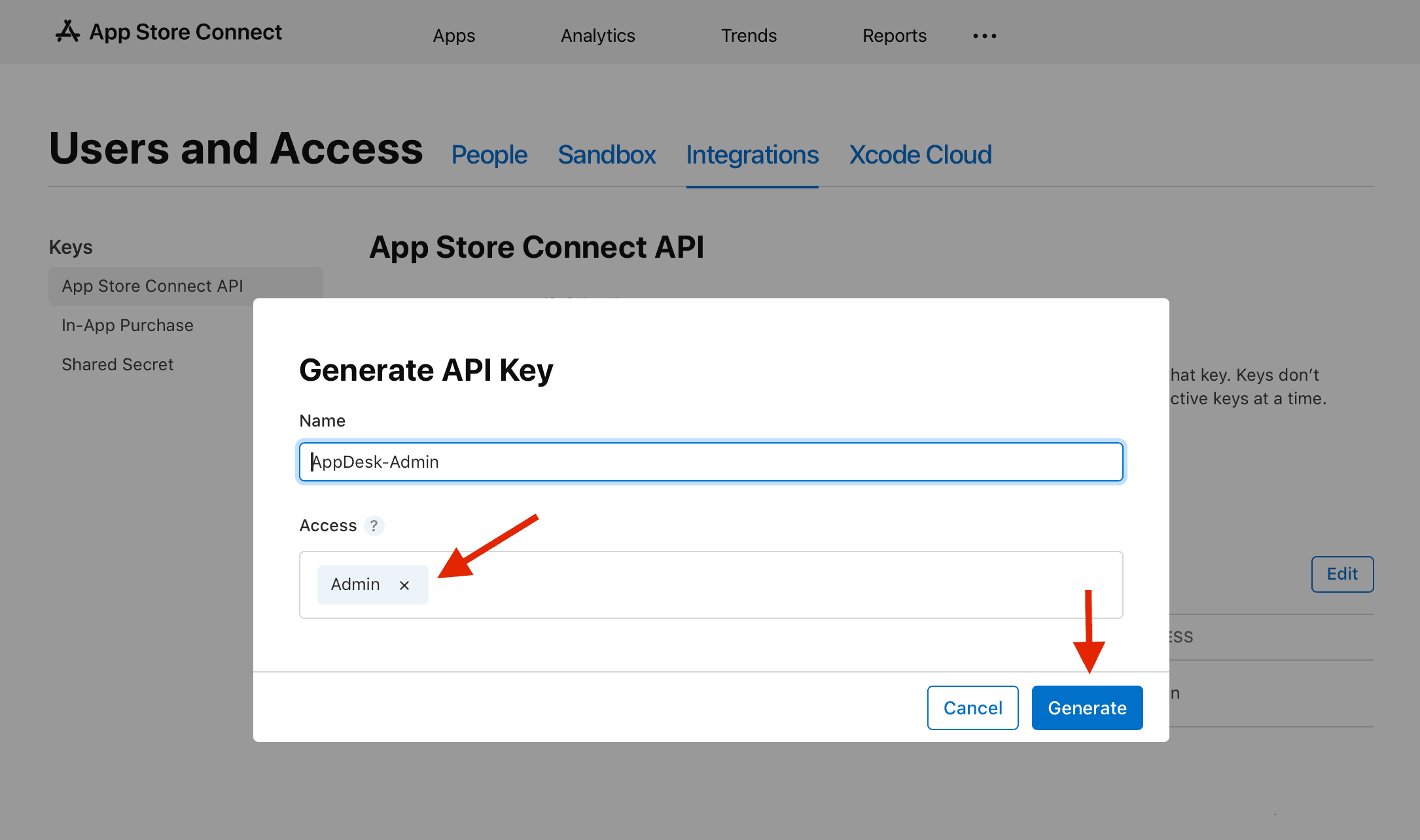
After generating the key, you will see:
- Issuer ID — Displayed at the top of the API Keys page. It is a UUID shared across all keys in your team (e.g.,
57246542-96fe-1a63-e053-0824d011072a). - Key ID — Shown in the table next to your newly created key (e.g.,
2X9R4HXF34).
Step 3 — Download the Private Key File
Immediately after generating the key, a Download button appears next to it.
- Click Download API Key to save the
.p8file. - Store the file in a safe location on your computer.
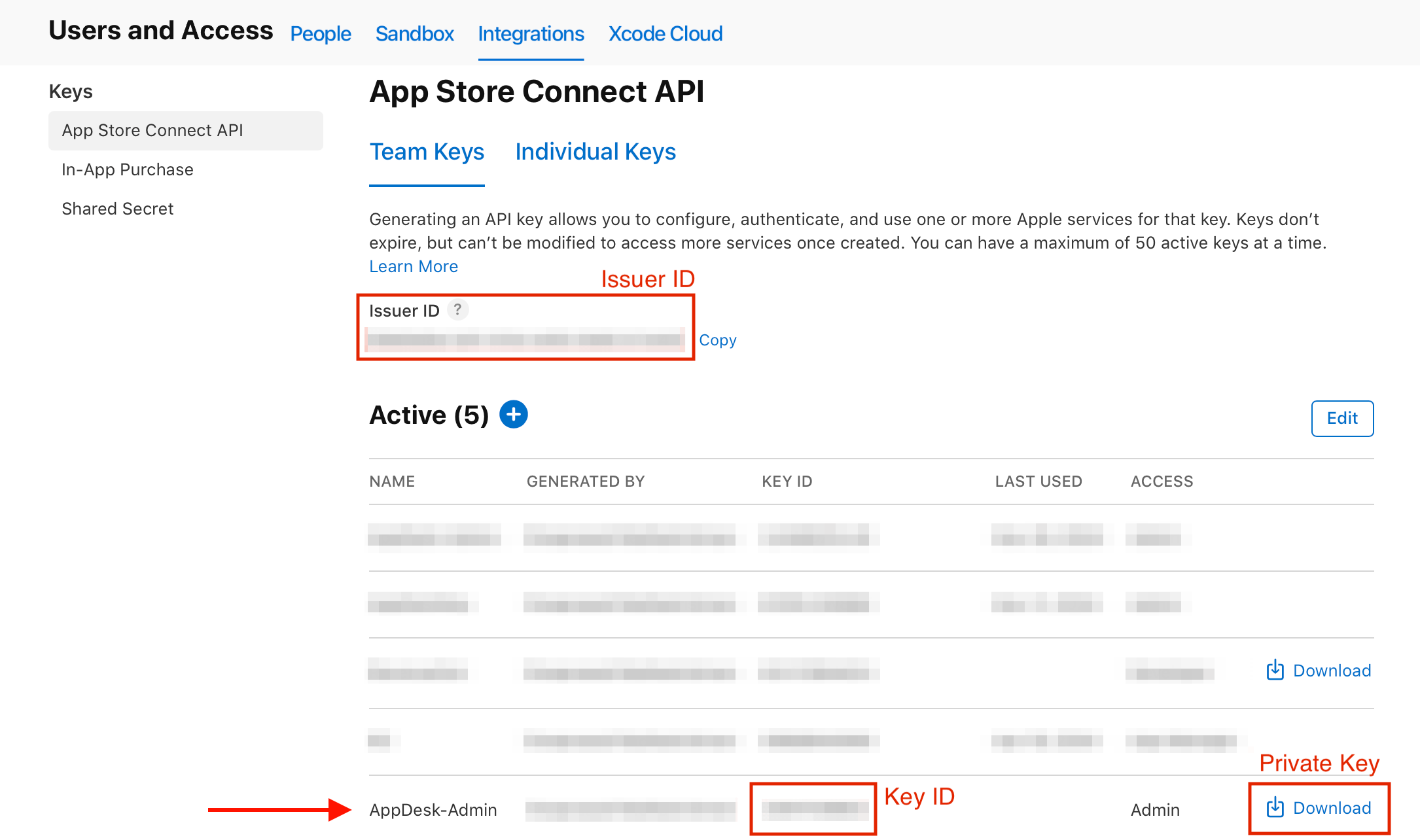
Important: Apple only lets you download the private key once. If you lose it, you will need to revoke the key and create a new one.
Step 4 — Find Your Vendor ID
The Vendor ID (also called Vendor Number) identifies your developer account for sales and financial reports.
- In App Store Connect, go to Sales and Trends from the top menu.
- Click the Reports section (or navigate to Payments and Financial Reports).
- Your Vendor ID is displayed at the top of the page as a numeric value (e.g.,
85612345).
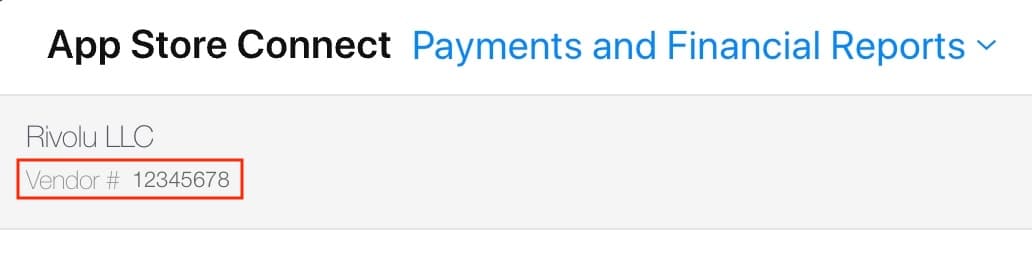
Tip: If you don't see Sales and Trends, make sure your account has accepted the latest agreements under Business → Agreements, Tax, and Banking.
Step 5 — Configure AppDesk
Open the AppDesk desktop app and enter the credentials you gathered:
| Field | Where to Find It |
|---|---|
| Issuer ID | Users and Access → Integrations → App Store Connect API (top of page) |
| Key ID | Same page, in the table next to your generated key |
| Vendor ID | Sales and Trends → Reports (numeric value at top) |
| Private Key (.p8) | Downloaded file from Step 3 |
Troubleshooting
“I can't see the Integrations tab”
Only Account Holders and Admins can access API key management. Ask your team's Account Holder to grant you Admin access or generate the key on your behalf.
“I lost my .p8 private key file”
Apple only allows one download per key. Go to Users and Access → Integrations → App Store Connect API, revoke the old key, and generate a new one. Then update your credentials in AppDesk.
“I can't find my Vendor ID”
Ensure you have accepted all agreements under Business → Agreements, Tax, and Banking. The Vendor ID only appears once your financial setup is complete.
Running Apple Ads campaigns as well? The Apple Ads setup guide walks through connecting your campaign spend so it sits next to the revenue it brought in.
Still need help? Contact us at admin@rivolu.com